Discussion
Loading...

Discussion

  • About
  • Code of conduct
  • Privacy
  • Users
  • Instances
  • About Bonfire
Space Catitude 馃殌
@TerryHancock@realsocial.life  路  activity timestamp 5 days ago

Free Software that I rely on. One per day.

Day 6:

Audacity

Another old one! I think I've been using Audacity for about 25 years, now.

It is a "destructive audio editor", which means it is kind of the audio equivalent to a bitmap editor in graphics -- you are actually changing the values of the samples in the recording when you make changes, rather than applying filters on top of them as non-destructive editors do.

This makes Audacity particularly good at constructing sound effects from recorded sources.

I do most of my audio processing in Audacity, but even if I do involve a non-destructive "DAW" platform, I would probably continue to use Audacity for creating effects and recording voices.

It is an excellent tool for recording audio directly or reviewing and selecting audio from field recordings.
https://www.audacityteam.org/

#FreeSoftwareAdvent #Audacity #Audio #DAW #Sound

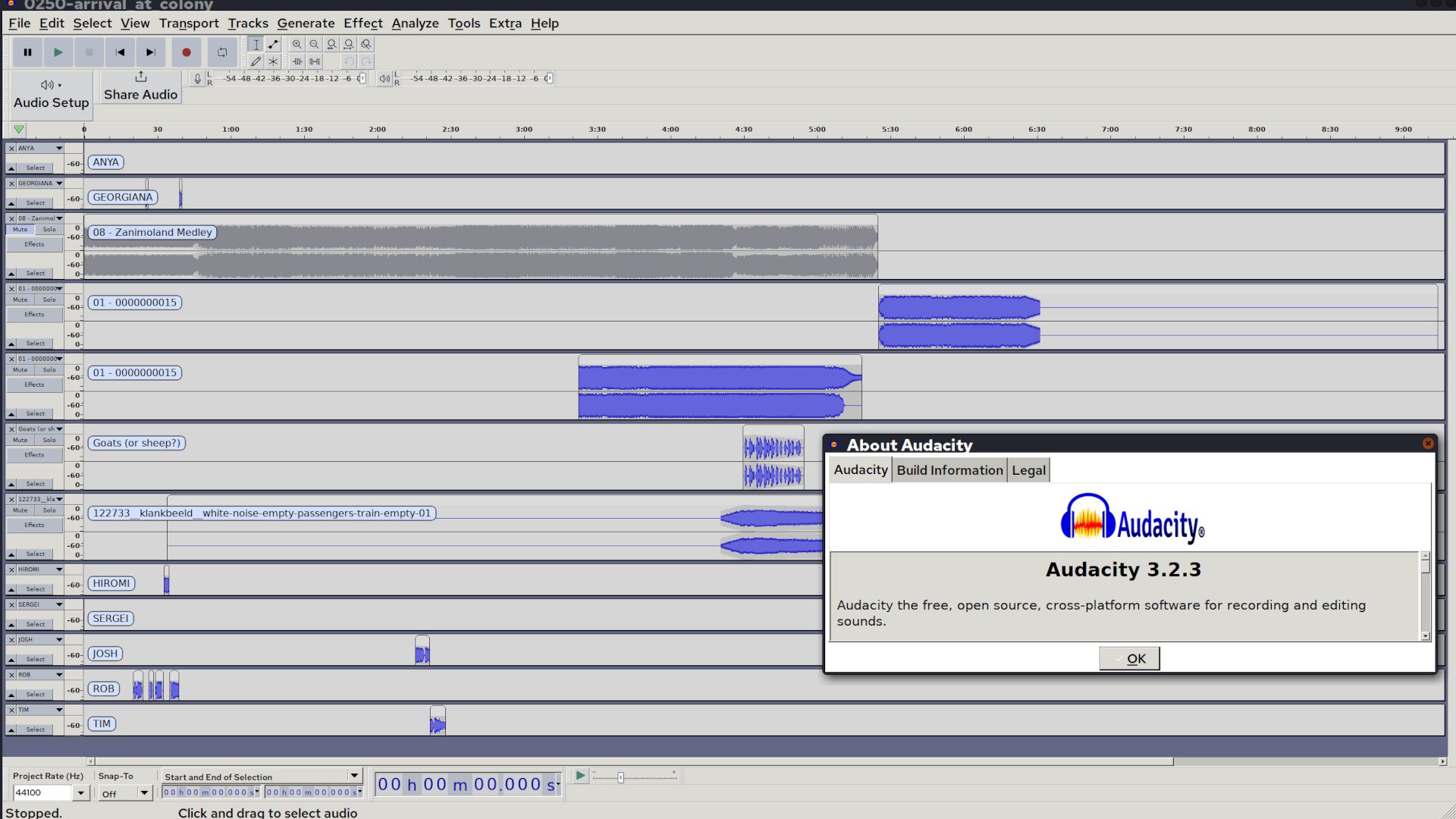
Screen capture of Audacity with a project loaded, including music, ambience, and effects.

An "About" pop-up window shows this is version 3.2.3.
Screen capture of Audacity with a project loaded, including music, ambience, and effects. An "About" pop-up window shows this is version 3.2.3.
  • Copy link
  • Flag this post
  • Block
Space Catitude 馃殌
@TerryHancock@realsocial.life replied  路  activity timestamp 5 days ago

Free Software that I rely on. One per day.

Day 7:

ImageMagick

This is actually a small suite of tools that can be used from the command line, although it also has a GUI interface. Pretty old school software; been around for ages; still very handy.

Not as powerful as Gimp or Krita for manipulating a single image, but with ImageMagick and a bash script you can make changes en masse ("convert" and "mogrify" -- which does the job in place). You can quickly check the format and size of images from the command line ("identify") or simply pop up the image with "display".

Finally, with "compose" you can make an image combining multiple images in many different ways, including making a grid with or without labels.

I don't use it as much as I used to, but it is still the simplest way to check image content from the command line. And it's really the only option when you need to change a whole lot of images at once.

Also often used on server back ends to manipulate images for display in web applications.

#FreeSoftwareAdvent #ImageMagick #Graphics #FreeSoftware #OpenSource

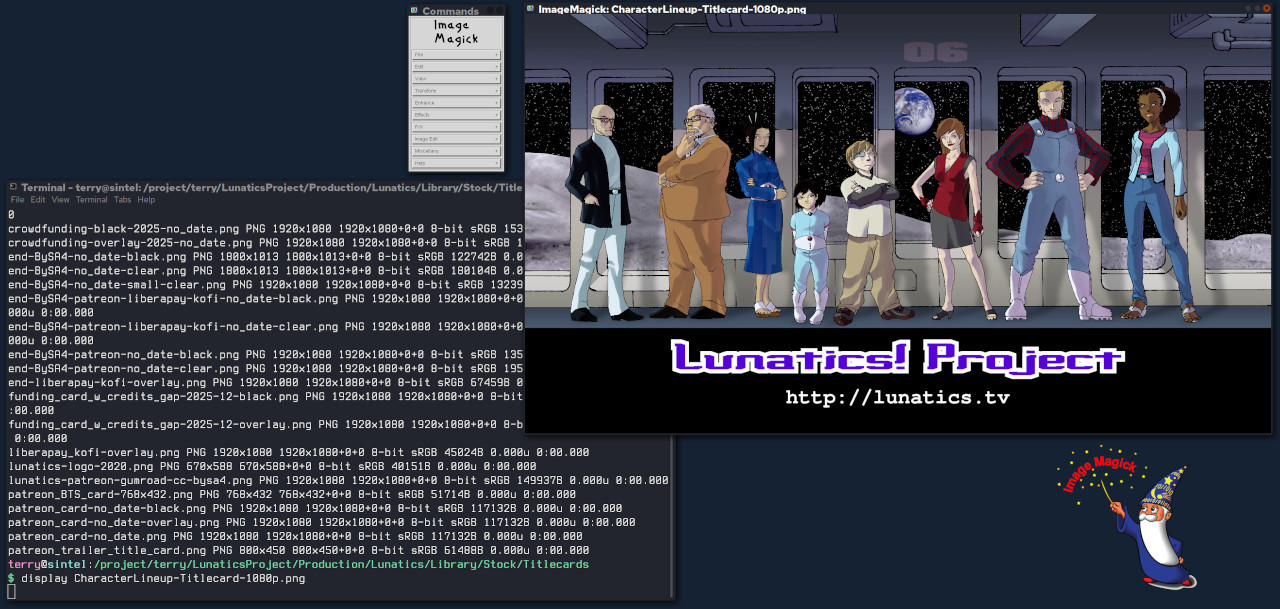
Demo of ImageMagick tools: terminal with output from "identify" showing filenames, format, size, and other details.

Also "display" has been used to pop up a window, with a simple editor menu.

The ImageMagick logo, a wizard holding a wand with the words "Image Magick" in red.
Demo of ImageMagick tools: terminal with output from "identify" showing filenames, format, size, and other details. Also "display" has been used to pop up a window, with a simple editor menu. The ImageMagick logo, a wizard holding a wand with the words "Image Magick" in red.
  • Copy link
  • Flag this comment
  • Block
Log in

bonfire.cafe

A space for Bonfire maintainers and contributors to communicate

bonfire.cafe: About 路 Code of conduct 路 Privacy 路 Users 路 Instances
Bonfire social 路 1.0.1-alpha.8 no JS en
Automatic federation enabled
  • Explore
  • About
  • Members
  • Code of Conduct
Home
Login