
Just cancelled my @1password subscription after 7 years because while they’re free to fund someone who wants to ethnically cleanse Europe (David Heinemeier Hansson aka DHH; https://www.alilleybrinker.com/blog/1password-funds-ethnic-cleansing/), I’m also free to not have my money be used for that.
If you’re on macOS/iOS, here’s how I migrated without losing any data and without any noticeable degradation in my experience¹.
> TL;DR: To migrate from 1Password, I used StrongBox to create my KeePass Database file without losing any of my data and I’m going to be using KeePassium to manage it and, separately, heylogin for authenticating with web sites in the browser.
Read on for detailed instructions:
1. Export your data from 1Password8 in 1Password Unencrypted Export (.1pux) format: https://support.1password.com/export/?mac
**Note that this is unencrypted.** DO NOT store this file in your iCloud Drive, Dropbox, etc., and remember to delete it when you’re done with the import.²
(I put it in my home folder.)
2. Download StrongBox, a native macOS client for KeePass Database files: https://apps.apple.com/us/app/strongbox-password-manager/id897283731
3. Launch StrongBox and select File → Import → 1Password → Import 1Pux and select the file you exported from 1Password.
4. Choose a strong password for your database and save the file. This is where you can save it to iCloud Drive to have your encrypted database synced between your Mac, iPhone, etc.
You could leave it there and use StrongBox but I wouldn’t recommend it. It has the best importer so that’s why I used it but the app is owned by Applause Group, which is VC-funded so it will enshittify.
The good news is that once you’ve exported your data from 1password and have your KeePass Database, it’s yours. You can use different apps to edit it, provide autofill, etc.
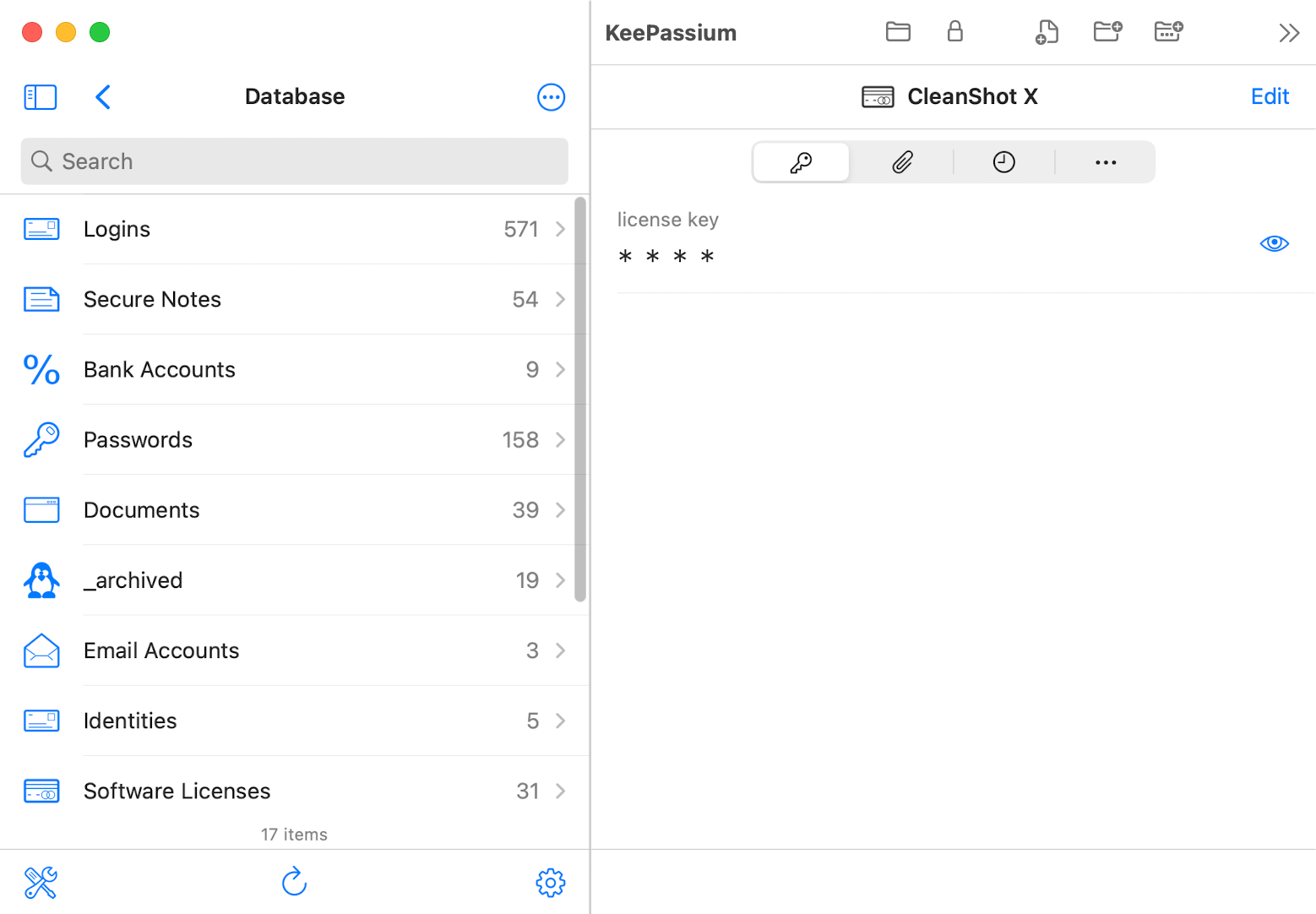
One of those apps is KeePassium (https://keepassium.com/) by an independent developer (Dr. Andrei Popleteev). So, to continue our guide:
5. Download KeePassium (https://apps.apple.com/us/app/keepassium-keepass-passwords/id1435127111) and open your database using that client and uninstall the VC-funded StrongBox once you’re done with the initial import.
Again, you can stop here.
But, since I had the export, I thought I’d also try heylogin – a zero-password password manager only for logins that’s based in the EU: https://heylogin.app/
They have a novel solution that integrates really well with browsers and has been working great for me so far (in the past hour) :)
So, there you have it: I had seven years of data in 1Password (actually, likely far more as I was using it before it was a subscription) and I was able to migrate away in about ten minutes. (It’s taken me longer to write this.) You don’t have to stay locked in if you don’t agree with their ethics.
Good luck! :)
(Remember to write a note and tell them why you’re cancelling and to share your own experiences in this thread.)
¹ After you import your data, go through it and check that you have everything.
² Actually delete it. Command+Backspace then right-click the Trash and Empty Bin.
#1Password #OnePassword #password #passwordManager #DHH #fascism #EU #Europe #ethnicCleansing